v11.7.2 out now·Free forever·No ads · no account · no limits·Spotify → MP3 / FLAC·YouTube → MP4 up to 4K·Windows · macOS · Linux·v11.7.2 out now·Free forever·No ads · no account · no limits·Spotify → MP3 / FLAC·YouTube → MP4 up to 4K·Windows · macOS · Linux·
This guide walks through downloading a complete Spotify playlist as MP3 or FLAC — with cover art, artist and album tags written into every file. It takes about two minutes, costs nothing, and needs no Spotify account.
5 min readUpdated 27 September 2026For PurffleGrab v11.7.2
First, how Spotify downloading actually works
Worth understanding before you start, because it explains the one limitation you may hit.
Spotify's audio streams are DRM-protected — no tool can pull the original file off Spotify, and any
tool claiming otherwise is not doing what it says.
What PurffleGrab does instead is read the playlist's public track list (title,
artist, album, cover art — no login required), find the closest matching audio on YouTube for each
track, download it at your chosen quality, and write the Spotify metadata onto the resulting file.
This is the same approach used by every working tool in this space, including spotDL. The upshot:
your files get clean, correct tags and artwork, but the audio itself comes from a YouTube match — so
on rare occasions a track can match the wrong version (a live cut, a remix or a cover). The
troubleshooting section covers how to fix that.
Step by step
Install PurffleGrab
Grab the latest release — .exe for Windows,
.dmg for Apple Silicon Macs, or .AppImage/.deb for Linux.
FFmpeg and the yt-dlp engine are bundled, so there is nothing else to install. On Windows,
SmartScreen may warn on first launch because the build is unsigned — choose More info → Run
anyway. On a Mac, see the Mac install guide.
Copy the playlist link
In Spotify, open the playlist and choose Share → Copy link to playlist. A URL like
open.spotify.com/playlist/… is what you want. Album and single-track links work
exactly the same way. The playlist must be public or unlisted — a fully private playlist isn't
readable without your account.
Paste and analyze
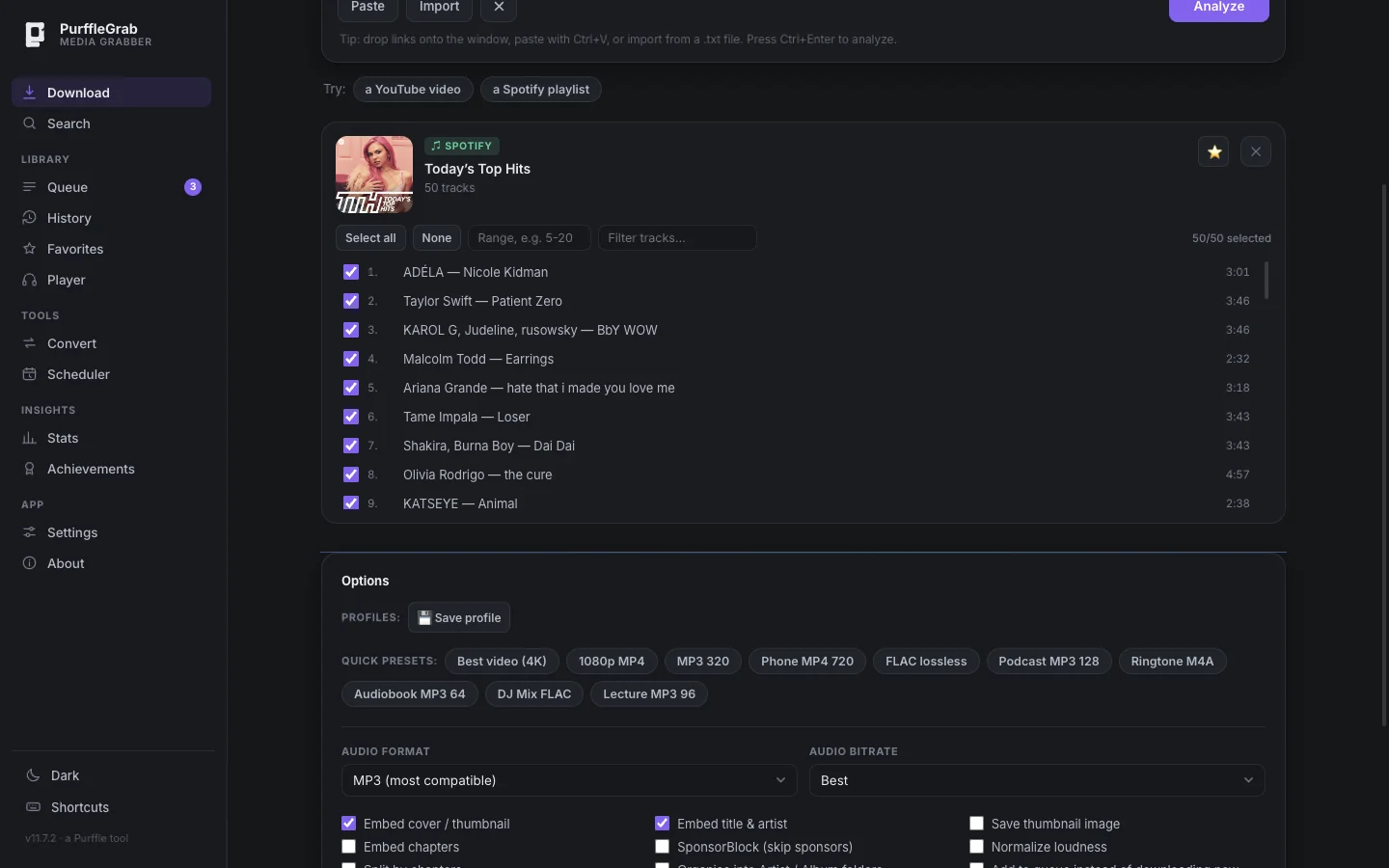
Paste the link into PurffleGrab and click Analyze. Every track is listed with
its artwork and duration. Untick anything you don't want, type a range such as 5-20,
or use the filter box to narrow a long playlist before selecting.
Pick your format
Choose a preset: MP3 320 is the safe default and plays anywhere; FLAC
lossless is the choice if you're archiving. See the format comparison below if you're
unsure.
Download
Click Download. Progress, speed and ETA show per track, and you can run up to
six downloads at once (Settings → Simultaneous downloads). Files land in
Music/PurffleGrab/ by default.
Spotify · track picker
The track picker after analyzing a Spotify playlist in PurffleGrab v11.7.2.
Playlists with more than 100 tracks
Without an account, Spotify's public data returns up to 100 tracks per playlist.
To download your own larger playlists in full, create a free app at
developer.spotify.com/dashboard
(it takes a minute and costs nothing), then paste its Client ID and Client Secret into
Settings → Spotify — large playlists and click Test. The credentials are
stored only on your computer.
Note: Spotify's own editorial playlists (Today's Top Hits, RapCaviar and
other spotify-owned lists) stay capped at 100 even with credentials — Spotify blocks API
access to them. Copy the tracks into a playlist of your own to grab the full list.
Which format should you choose?
Format
Size per track
Quality
Best for
MP3 320
~8 MB
Very good
The default. Plays on literally everything — car stereos, old MP3 players, phones.
M4A / AAC 256
~6 MB
Very good
Slightly better than MP3 at the same size. Ideal in the Apple ecosystem.
FLAC
~25–35 MB
Lossless copy
Archiving. The source is a compressed stream, so FLAC preserves it exactly rather than improving it.
Opus
~4 MB
Excellent
Best quality per byte, but support on older devices is patchy.
MP3 128
~3 MB
Fair
Podcasts and spoken word, where file size matters more than fidelity.
One honest caveat on FLAC: because the audio originates from a compressed stream, encoding it to
FLAC gives you a lossless copy of that stream — it cannot restore detail that was never
there. Choose FLAC for archival stability, not as a quality upgrade.
Cover art, artist and album tags
Tags are written from Spotify's own metadata rather than scraped from the YouTube title, which is
why the results land cleanly in music libraries. With Embed cover / thumbnail and Embed
title & artist enabled (both on by default), each file gets the track title, artist, album
name and full-resolution album artwork embedded. Files import into Apple Music, iTunes, Plex,
Jellyfin, foobar2000 and Navidrome with artwork and grouping already correct.
If you want a different naming scheme on disk, the Rename files tool in the
History tab applies a pattern such as %(artist)s - %(title)s across a finished download,
and always shows a preview before changing anything.
Troubleshooting
A track downloaded the wrong version (live, remix or a cover)
The YouTube match wasn't right. Download that one track on its own: search for it in the Search tab, pick the correct result by eye, and download it. Then delete the bad file.
"No match found on YouTube" for some tracks
Usually a very obscure release, a regional exclusive, or a track whose artist name is spelled differently on YouTube. Search the Search tab manually — it will normally be there under a slightly different title.
Downloads fail or stall part-way through
The engine updates itself, but you can force it: Settings → Update engine. Failed tracks also retry automatically with alternative YouTube clients, and each failure now says why — private, region-blocked or age-restricted. If a big playlist is being throttled, lower Simultaneous downloads to 1 or 2.
Check the playlist is public or unlisted rather than private, and that you copied the playlist link rather than a link to a single track inside it. Mixes generated just for you may not be publicly readable.
Where did my files go?
Music/PurffleGrab/ by default, in a per-job folder. Change the location in Settings, or click Open folder on any finished download.
Is this legal?
PurffleGrab is a tool, and how you use it is your responsibility. Downloading copyrighted music you
have not paid for generally breaches Spotify's and YouTube's terms of service, and may infringe
copyright where you live. Legitimate uses include your own uploads, public-domain and Creative Commons
material, and content you are licensed to keep offline. We don't endorse piracy and accept no
liability for misuse.